The goal is not to hide the use of AI. The goal is to make the video feel specific, coherent, accurate, and intentionally produced. Most weak AI videos look artificial because they rely on generic scripts, unrelated scenes, inconsistent subjects, generated text, default voices, automatic pacing, and minimal sound or brand finishing.
A professional-looking result normally comes from using AI to create selected assets, then controlling the complete video with a script, shot plan, references, real product evidence, editing, graphics, sound, and review.
For the complete planning, production, cost, and hiring framework, read AI Video for Business.
Why Do AI Videos Look Generic?
AI systems are designed to produce plausible output from broad instructions. That is useful for exploration, but a business video cannot remain an average of familiar marketing language and visual conventions.
Common warning signs include:
- a script that could describe almost any company;
- dramatic imagery that does not prove the product claim;
- different-looking people, products, locations, or lighting in every shot;
- impossible actions or subtle visual artifacts;
- invented logos, labels, charts, interface text, or packaging;
- a voice with uniform emphasis and unnatural pauses;
- captions and typography that look like platform defaults;
- music with no relationship to the edit;
- shots that are all the same length;
- excessive camera movement, slow motion, or visual spectacle;
- no clear reason for one scene to follow another;
- a logo added at the end without a broader brand system.
These are production problems. They can be addressed without pretending that AI was not involved.
1. Start With a Specific Message
The most important improvement happens before generation.
Define:
- the exact viewer;
- the problem or question that brought the viewer to the video;
- the one idea the viewer should remember;
- the proof the viewer needs;
- the action the viewer should take next.
Replace broad language with concrete detail.
| Generic | Specific |
|---|---|
| Transform the way your team works. | Route new support requests to the right specialist without copying information between systems. |
| Unlock powerful insights. | See which accounts have not completed onboarding and send the next step from the same dashboard. |
| Save time and increase efficiency. | Turn a recorded webinar into a captioned tutorial, a short social clip, and a searchable help article. |
Specific language gives the visual plan something real to show.
2. Do Not Ask One Tool to Make the Entire Video
A one-click export gives the tool control over the script, scene selection, visual style, pacing, voice, music, captions, and edit. That is efficient only when its defaults already match the project.
For a more controlled result, separate the workflow:
- approve the brief;
- write the script;
- create a scene plan;
- select the production method for each scene;
- generate, capture, animate, or collect the assets;
- record or direct the voice;
- edit the sequence;
- add graphics, sound, captions, and brand finishing;
- review accuracy, rights, and delivery versions.
AI can assist at every stage without owning every stage.
3. Create a Shot Plan Before Generating
Write one visual job for each script beat.
A useful shot plan includes:
- scene number;
- narration or main message;
- visual purpose;
- required subject, product, action, and environment;
- production method;
- shot size and camera movement;
- approximate duration;
- continuity reference;
- graphic or caption safe area;
- review notes.
For example:
| Scene | Message | Strong visual method |
|---|---|---|
| 1 | A marketer is buried in disconnected campaign assets. | Generated or staged conceptual shot. |
| 2 | The product connects the work in one place. | Real software screen capture or accurate interface animation. |
| 3 | The team produces several approved formats. | Motion-graphics layout using real output examples. |
| 4 | Request a demo. | Controlled brand end card. |
This is stronger than asking a generator to invent every scene from the narration.
4. Establish Visual Rules
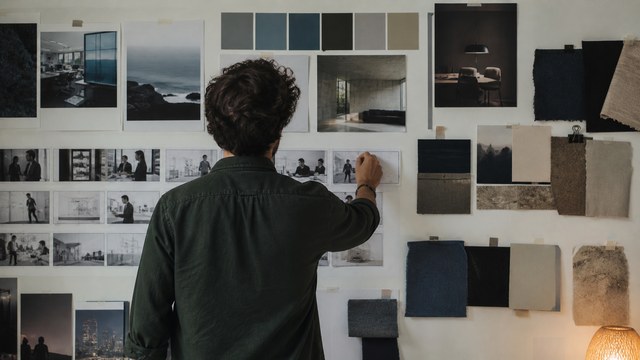
A small visual guide can prevent the video from feeling like a compilation.
Define:
- realism or stylization level;
- aspect ratio;
- reference images;
- subject appearance and wardrobe;
- product shape and materials;
- location and time of day;
- palette and contrast;
- lighting direction;
- lens and depth of field;
- camera movement;
- frame rate and motion character;
- texture or grain;
- elements that cannot change.
Use the same reference set across related shots. With invideo agent, teams can keep character details, locations, and visual direction in the project’s shared context while refining individual scenes. Review each result against those references to catch changes in appearance, lighting, or composition. When the tool supports seeds, character references, style references, first-frame references, or image-to-video input, preserve those settings with the project notes.
5. Generate to the Edit
Do not create a large asset library without knowing what the edit needs.
For each shot, determine:
- where the edit begins and ends;
- what action needs to happen;
- which part of the frame must remain clear;
- whether the shot needs room for type;
- whether the first or final frame must connect to another shot;
- whether it must crop to vertical or square;
- whether a static image with controlled motion would be more reliable.
A strong three-second insert is more useful than a beautiful ten-second clip with no editorial purpose.
6. Use Real Product Evidence
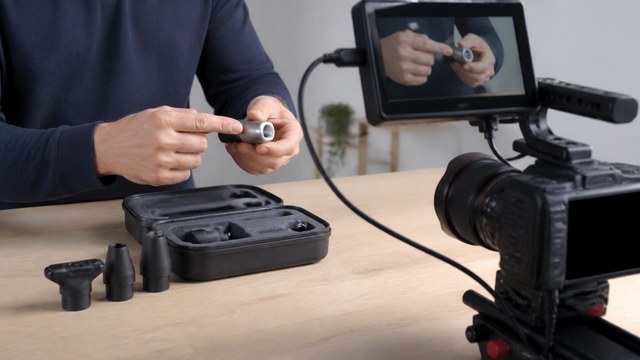
Generated material can establish mood, scenario, metaphor, or scale. It should not replace evidence when the viewer needs to understand the real product.
Use real or approved material for:
- software interfaces;
- app interactions;
- physical products;
- dashboards and reports;
- medical devices and clinical information;
- diagrams and data;
- customer results;
- packaging, labels, and logos;
- exact locations or facilities;
- founder, employee, customer, or expert testimony.
A hybrid video often feels more credible because generated supporting scenes create visual range while accurate product material earns trust.
Explore HiLo Media's app demo videos and software tutorial videos for product-centered approaches.
7. Replace Generated Text and Graphics
Do not rely on generated footage for important words, logos, user-interface labels, charts, legal language, product packaging, or calls to action.
Instead:
- remove, crop, blur, track over, or replace incorrect text;
- rebuild interface details from approved source material;
- use motion graphics for charts and diagrams;
- add logos as controlled vector or high-resolution assets;
- apply real typography with approved fonts and spacing;
- check every frame where generated text may appear.
Even when a viewer cannot read the invented text, the texture often signals that the image was not intentionally designed.
8. Control Character, Product, and Environment Continuity
Continuity is more than keeping the same face.
Review:
- age, hair, skin, facial features, body proportions, wardrobe, and accessories;
- product color, size, shape, labels, controls, and materials;
- room layout, furniture, windows, props, weather, and time of day;
- screen direction and eyelines;
- lighting direction and color temperature;
- camera height, lens, movement, and depth of field;
- action progression from one shot to the next.
When a shot cannot be made consistent, choose another strategy:
- use a closer crop;
- show hands or the environment instead of the full subject;
- turn the image into a designed graphic panel;
- use a static frame with subtle motion;
- cover the transition with product footage, text, or an insert;
- replace the shot with stock, screen capture, animation, or live action.
9. Direct the Voice
A default voice can make a custom visual sequence feel interchangeable.
Review:
- pronunciation of company, product, person, and technical names;
- emphasis on the important words;
- sentence length and breath points;
- pauses between ideas;
- pace relative to the visuals;
- warmth, authority, urgency, restraint, or humor;
- consistency across regenerated lines;
- whether the audience expects a real spokesperson or expert.
Use a temporary voice to establish timing, then decide whether the final should be a directed AI voice, human voice actor, founder, customer, employee, or no narration.
10. Edit for Meaning, Not for Generated Spectacle
A generated shot should remain in the edit only when it helps the viewer.
Remove or shorten scenes that:
- repeat the narration without adding information;
- show an artifact that draws attention away from the message;
- change style or continuity without purpose;
- are present only because they were difficult to generate;
- move constantly when a stable composition would be clearer;
- delay the real product or proof;
- make the video longer without improving understanding.
A shorter edit with fewer controlled shots usually feels more professional than a longer reel of impressive but unrelated generations.
11. Build a Real Graphic System
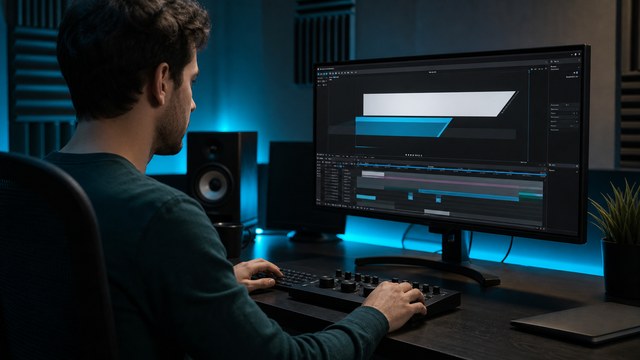
Use graphics to unify material from different sources.
A simple system can include:
- approved font family and hierarchy;
- title, subtitle, label, caption, and callout styles;
- consistent margins and safe areas;
- color roles rather than random brand-color use;
- motion timing and easing rules;
- shapes, lines, masks, crops, or panels that frame mixed media consistently;
- a controlled logo and end card;
- reusable horizontal, square, and vertical layouts.
Graphics should clarify the story and hide technical seams without covering the entire video in decoration.
12. Treat Sound as Part of the Picture
Viewers may forgive a small visual imperfection before they forgive distracting audio.
Professional sound finishing can include:
- voice cleanup;
- removal of inconsistent room tone or synthetic artifacts;
- level and tone matching between generated or recorded lines;
- music selection and editing;
- sound effects that support actions and transitions;
- subtle ambience that helps unrelated shots inhabit the same world;
- a final mix appropriate for web, social, presentation, or broadcast use.
Do not use music as continuous filler. Let it support the emotional and editorial structure.
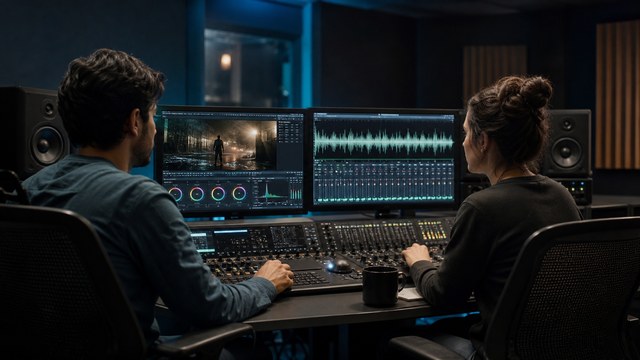
13. Grade and Texture the Sequence Consistently
Generated clips may vary in contrast, saturation, sharpness, noise, motion blur, and black level.
A finishing pass can:
- match exposure and color temperature;
- control saturation and skin tone;
- reduce excessive sharpness or plastic texture;
- add restrained grain or texture where appropriate;
- normalize black and highlight levels;
- match motion blur and frame cadence;
- avoid one shot feeling cleaner, softer, or more processed than every other shot.
Color cannot repair an inaccurate or structurally weak scene, but it can help approved shots feel related.
14. Review at More Than One Speed and Size
Perform several reviews:
Normal-Speed Review
Does the story make sense? Is the pace clear? Does any scene call attention to an artifact?
Sound-Off Review
Can a social viewer understand the main idea through picture, graphics, and captions?
Frame-by-Frame Review
Check transitions, generated text, hands, faces, product details, logos, reflections, edges, and compositing.
Mobile Review
Are captions, labels, interface details, and products readable on a phone?
Alternate-Format Review
Confirm that vertical and square versions have intentional framing and type, not automatic crops that remove the subject or evidence.
Accuracy and Rights Review
Confirm product details, claims, terminology, captions, permissions, licenses, and the current terms of the tools used.
The Keep, Repair, Replace, or Rebuild Test
When reviewing an existing AI video, classify each scene.
| Decision | Use it when | Typical action |
|---|---|---|
| Keep | The scene supports the message and meets the quality bar. | Edit and finish normally. |
| Repair | The core image works but has correctable issues. | Crop, stabilize, retime, composite, grade, add graphics, replace text, or improve sound. |
| Replace | The scene distracts, drifts, or cannot show the required evidence. | Generate again or use stock, product, screen, animated, or live-action material. |
| Rebuild | The problem is the script, structure, or visual concept. | Re-plan the section before creating more assets. |
Do not spend hours repairing a shot that a different production method can replace more clearly.
When to Hire a Professional Editor or Production Team
Professional help is useful when:
- the video is important enough that “almost right” is not acceptable;
- continuity problems affect many scenes;
- the product or interface must be accurate;
- the script needs a more specific argument;
- the draft requires compositing, motion graphics, sound, or voice replacement;
- the company needs several channel versions;
- stakeholders are reviewing repeated exports without progress;
- the internal team has reached the limit of the tool or its available time.
A professional does not need to replace the entire project. HiLo Media can identify which material is already useful and focus the scope where it improves the final result.
Explore AI video production and professional finishing or read Can a Professional Fix or Finish My AI-Generated Video?.
Send HiLo Media your idea, source material, or current AI-video draft for a practical recommendation based on what the project actually needs.
FAQ
Why does my AI video look fake?
The problem may come from generic scripting, inconsistent subjects or products, impossible actions, invented text, default voice and captions, automatic pacing, weak sound, or scenes that were generated separately without a shared visual plan.
Can editing make AI video look more professional?
Yes. Editing can improve structure, shot selection, pacing, continuity, graphics, text, color, voice, music, sound, captions, and delivery versions. Severe artifacts or inconsistent scenes may be better replaced than repaired.
How do I keep the same character across AI video clips?
Use consistent reference images and supported continuity controls, preserve prompt and project settings, define wardrobe and environment rules, and review details across scenes. Plan alternate coverage because no method guarantees perfect continuity in every action.
Should I disclose that a video uses AI?
Disclosure requirements depend on the content, platform, location, industry, people depicted, and current law or policy. Verify the applicable requirements before publication, especially for synthetic people, voices, news-like content, endorsements, political material, and regulated uses.
Should I use AI-generated footage for a real product demo?
Use real or approved product footage when the viewer needs accurate evidence. Generated scenes can support the story, but they should not invent how a product, interface, device, or workflow behaves.
Can HiLo Media fix only the weakest scenes?
Yes. A finishing scope can preserve approved material and focus on the shots, voice, graphics, sound, structure, or versions that prevent the current draft from being publishable.
Disclosure: InVideo is providing HiLo Media with InVideo Studio access in exchange for this sponsored mention.